How to fix Lenovo T420 Nvidia brightness issue under Ubuntu
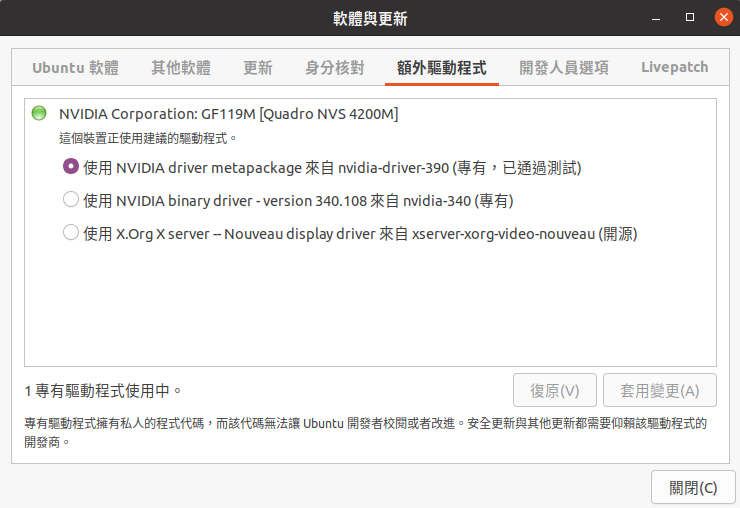
Reference Link
https://wiki.debian.org/NvidiaGraphicsDrivers
Configuration
As the NVIDIA driver is not autodetected by Xorg, a configuration file is required to be supplied. Modern Debian packages for the NVIDIA driver should not require you to do anything listed here as they handle this automatically during installation, but if you run into issues, or are using a much older version of Debian, you may try going through these steps.
Automatic
Install the nvidia-xconfig package, then run it with sudo. It will automatically generate a Xorg configuration file at /etc/X11/xorg.conf.
Manual
For example:
/etc/X11/xorg.conf.d/20-nvidia.conf
- Section "Device" Identifier "My GPU" Driver "nvidia" EndSection
The configuration file above can be created using these commands:
- # mkdir -p /etc/X11/xorg.conf.d # echo -e 'Section "Device"\n\tIdentifier "My GPU"\n\tDriver "nvidia"\nEndSection' > /etc/X11/xorg.conf.d/20-nvidia.conf
If you can't change the screen brightness, open your Xorg configuration file (/etc/X11/xorg.conf or /etc/X11/xorg.conf.d/20-nvidia.conf depending on which method you used) and add
Option "RegistryDwords" "EnableBrightnessControl=1;"
PS. if we have did all configuration but login to X-Windows that screen resolution become abnormal that mean it have to troubleshooting which nvidia_drv.ko existing or not. Example:
dpkg -L nvidia-dkms-390
dkms status
nvidia, 390.144, 5.13.0-28-lowlatency, x86_64: installed
virtualbox, 6.1.26, 5.13.0-28-lowlatency, x86_64: installed
dpkg -L xserver-xorg-video-nvidia-390
sudo cp /usr/share/X11/xorg.conf.d/10-nvidia.conf /etc/X11/xorg.conf.d/
#add below line in 10-nvidia.conf
Option "RegistryDwords" "EnableBrightnessControl=1;"